
Azure Client
A free client for Minecraft Java 1.21.11. Cleaner menus, a HUD you arrange, six painted skies, and your friends one click away.
Version 1.2.8 Free, no account needed. Windows installer or Modrinth.
Why Azure
Built for playing, not for digging through settings.
Azure is one Fabric mod. It adds the things people install five mods for, and it keeps them out of your way until you need them.
-
One menu, and you can type in it
Press Left Alt. Categories sit as glass tiles under the title; open one and its modules appear as cards with a switch each. Or just start typing to search.
-
Your HUD goes where you put it
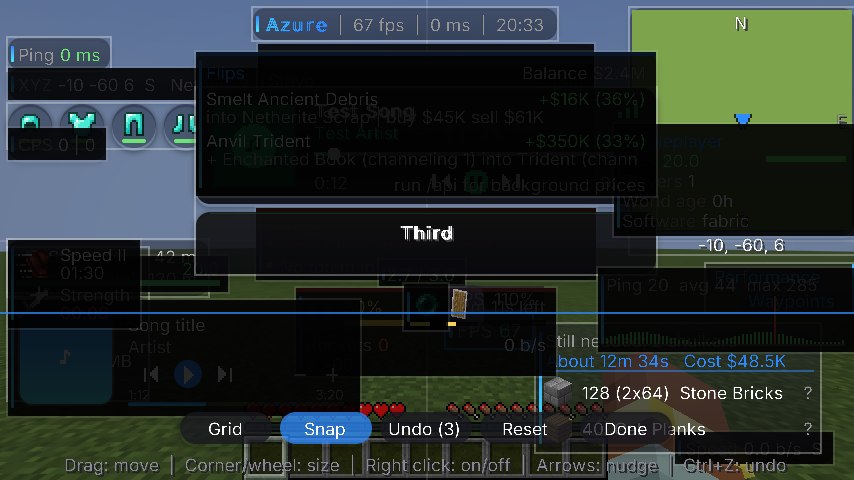
Drag widgets around, and they snap to screen edges and to each other. Resize anything from 50 to 300%, nudge with the arrow keys, undo with Ctrl+Z.
-
Online is opt-in
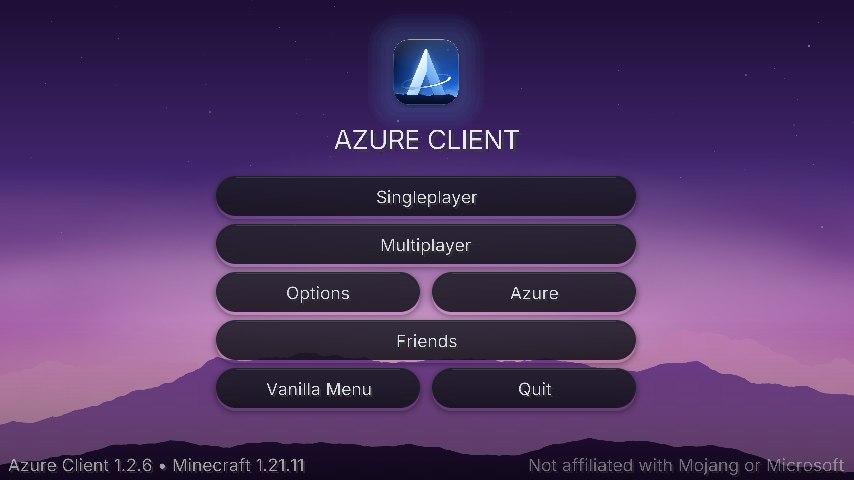
Friends, chat, party and capes run on Azure Online, which is off by default. Nothing is sent until you turn it on, and one button deletes your online data. Read the privacy page.
-
Off means off
A feature you haven't switched on doesn't run at all. The ones you use are written to draw less: culling, particle limits and a one-click FPS Booster you can undo.
Menu & HUD
A menu you can find things in.
Two menu styles: Modern, with tiles that open into module cards, or Classic, with draggable windows. Both share the same HUD editor.
- HUD editor. Snap guides, a 10 px grid, Reset, and Ctrl+Z. Widgets you switched off show as faint ghosts.
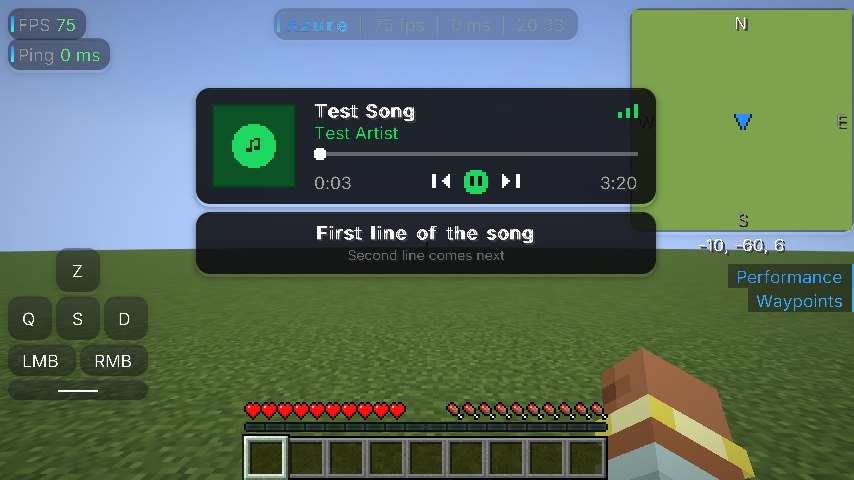
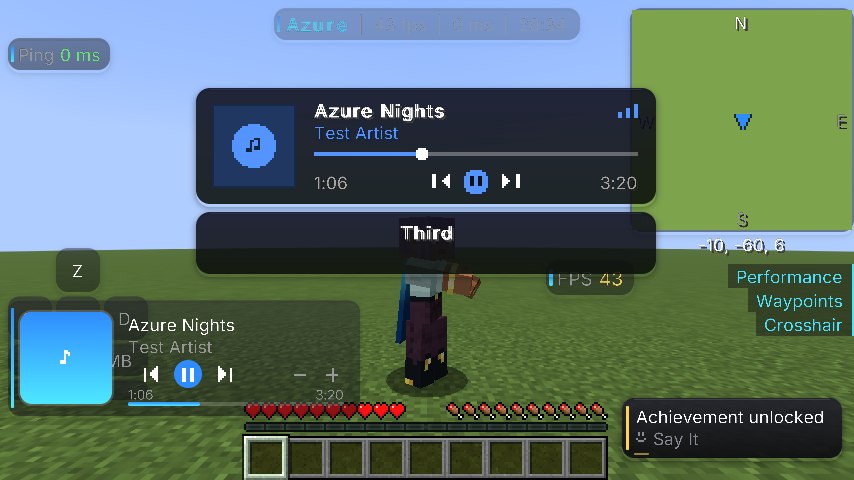
- Widgets. FPS, ping, coordinates, minimap, keystrokes, CPS, armor status, potion effects, cooldowns, target, elytra and server info.
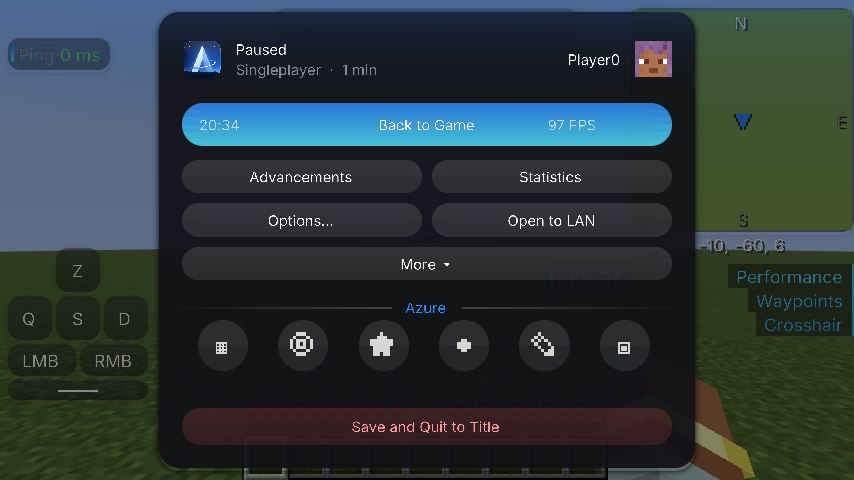
- Azure pause menu. One card with your server, FPS and ping, every vanilla button, and the rare ones tucked behind More.
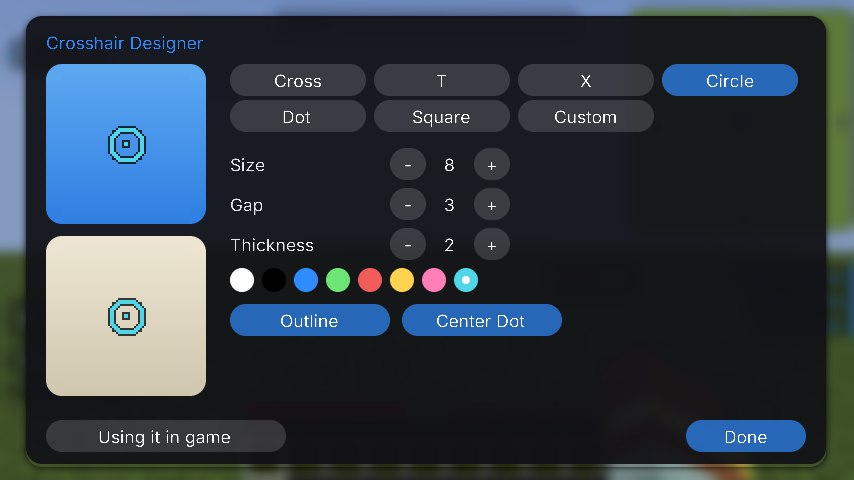
- Crosshair Designer. Pick a shape, or paint your own on a 21×21 grid.
- Themes. Auto follows your clock: Azure by day, Sunset, Sakura, then Midnight.
Sky
Six skies. Pick one, look up.
The Sky module swaps the Overworld sky for a painted one, only on your screen. Everything is drawn by Azure itself: no resource pack, no shaders, and the same handful of draw calls as the vanilla sky.


Captured in game. Brightness, animation speed, sun and moon, clouds and shooting stars are all settings, and Sky & Time can hold your screen at day, sunrise, sunset or night.
Make it yours
Your colors, your keys, your notes.
Every Azure feature has its own settings, and any of them can be switched off. A few tools make the whole client feel like yours.
- Theme Editor. Accent colors, panel color and opacity, corner roundness, font and menu blur, with a live preview. Save as many themes as you like.
- Share codes. Your theme, crosshair or whole HUD layout fits in one short code. Copy it, send it, a friend pastes it.
- Keyboard Map. Every Azure and Minecraft bind on a picture of your keyboard. Clashes show in red; click a key to rebind it.
- Sticky Notes. A small to-do list on your screen, ticked off in game.
- Chat Filter. Hide words or patterns, and pin one message to the top of chat until you unpin it.
- Quick start. On first launch pick PvP, Builder or Minimal and the right widgets turn on.


Music & Lyrics
The song on your PC, synced in your game.
Azure reads what Spotify, a browser tab or any app in Windows' media controls is playing, finds synced lyrics on LRCLIB and lights each word up as it is sung.
- Three layouts. Scatter places each word in the world at its own angle, Line builds the line in front of you, Subtitles keeps it on screen.
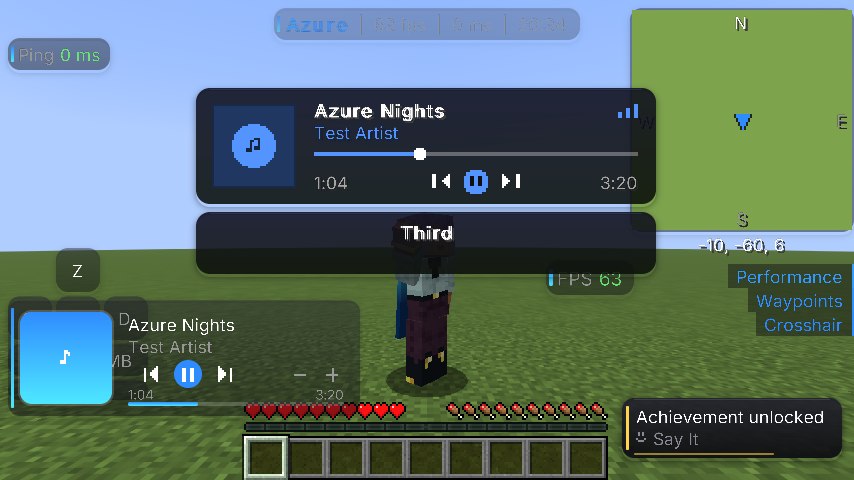
- Music Player widget. Cover art, title, artist, progress, previous, play/pause, next and volume.
- Media keys in game. Skip or pause without leaving Minecraft.
- Timing you can fix. A global offset, or nudge a single song 100 ms per key press. Your own
.lrcfiles take priority. - Works offline after the first play. Lyrics are cached on your PC.
Friends & Party · Azure Online
See where your friends are playing, and join them.
Switch on Azure Online and the Friends list on the title screen shows each friend's server. Join connects you to it.
- Friends. Add someone from Azure Chat or paste their friend code (
AZ-XXXXXXXX). Private messages can only be read by the two of you. - Azure Chat. One chat for Azure players across every server. Shadow Mode lets you read it without appearing in the list.
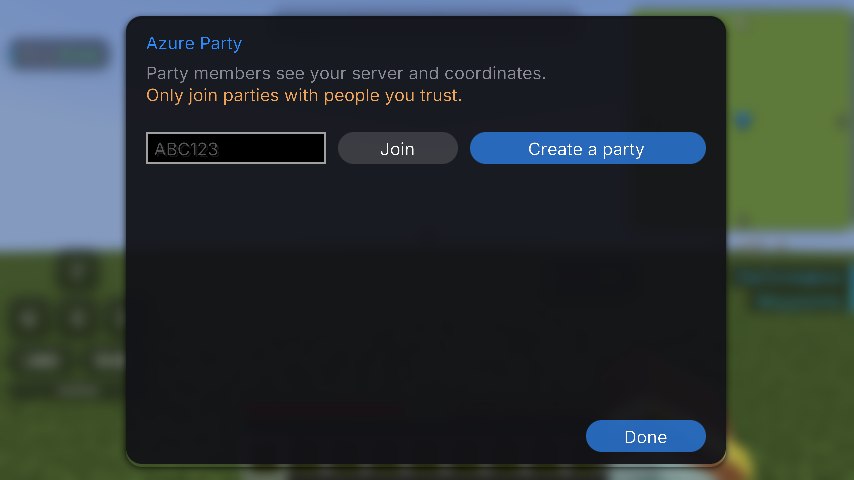
- Azure Party. A 6-letter code for up to 8 players. See each other's server and position, ping a block for 30 seconds with G, share waypoints.
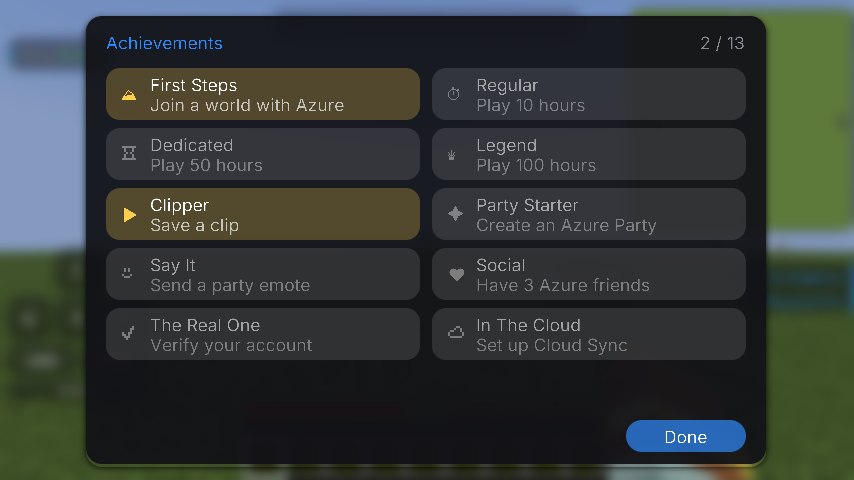
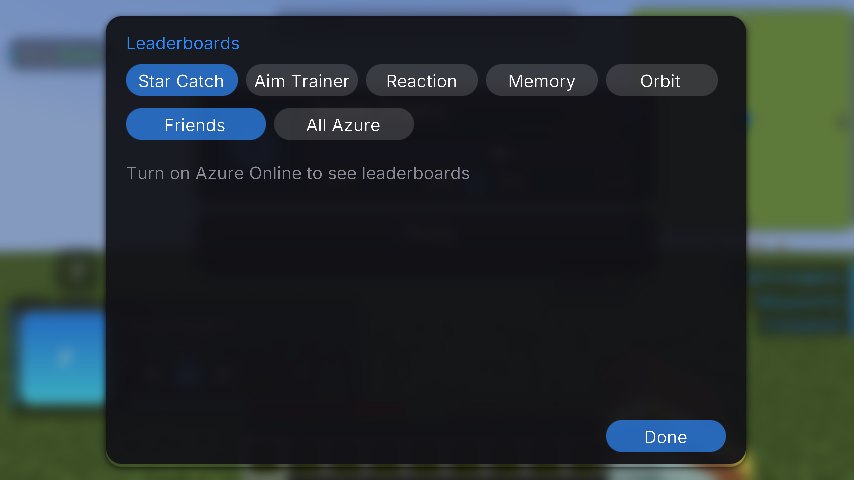
- Achievements and leaderboards. Profile cards, plus scores for the built-in Azure Games against friends or everyone.
- Do Not Disturb. Hides friend, party and message pop-ups.
Cosmetics
Capes and emotes other Azure players can see.
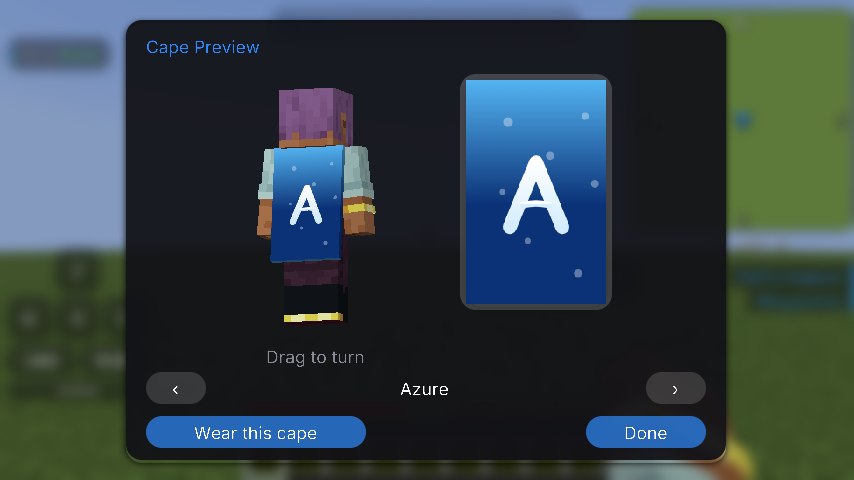
Preview a cape in 3D on your own player, then wear it. Players without Azure see normal Minecraft.
- Free capes. Azure, Midnight, Sakura, Peaks, Ocean and Ember.
- Earned capes. Frost at 10 hours of playtime, Nebula at 25, Aurora at 50, Galaxy at 75, Crystal at 100. Together for bringing three new players.
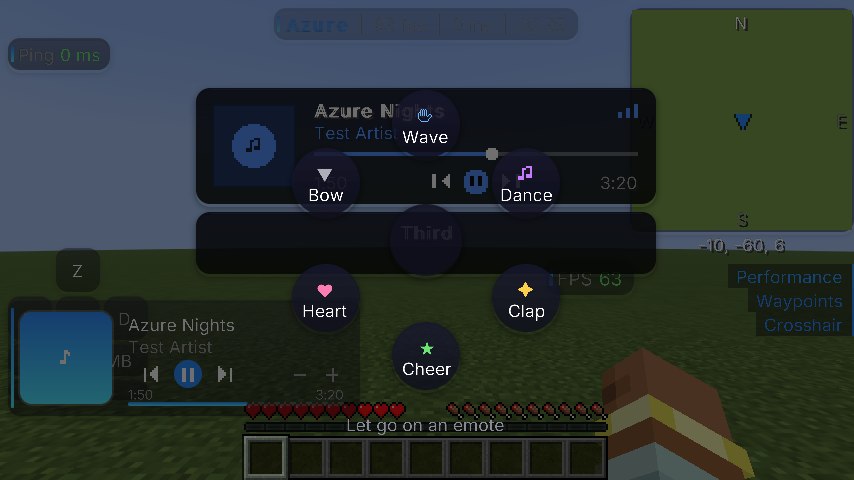
- Emote wheel. Hold B for Wave, Dance, Clap, Cheer, Heart and Bow. The camera turns round so you can see yourself.
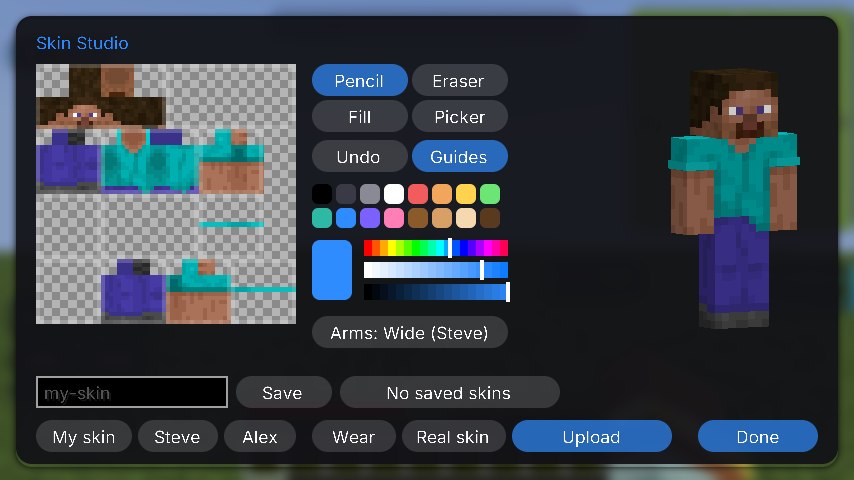
- Skin Studio. Paint a 64×64 skin with pencil, fill and color picker, check it in 3D, then upload it to your Minecraft account.
Creator tools
Save the moment after it happened.
Clips keeps the last 10 to 60 seconds of gameplay. Press F8 and it is saved. Clips are picture only for now: no sound.
- Vertical Clips. A 9:16 copy for phones, with a small Azure mark. The file path is copied for you.
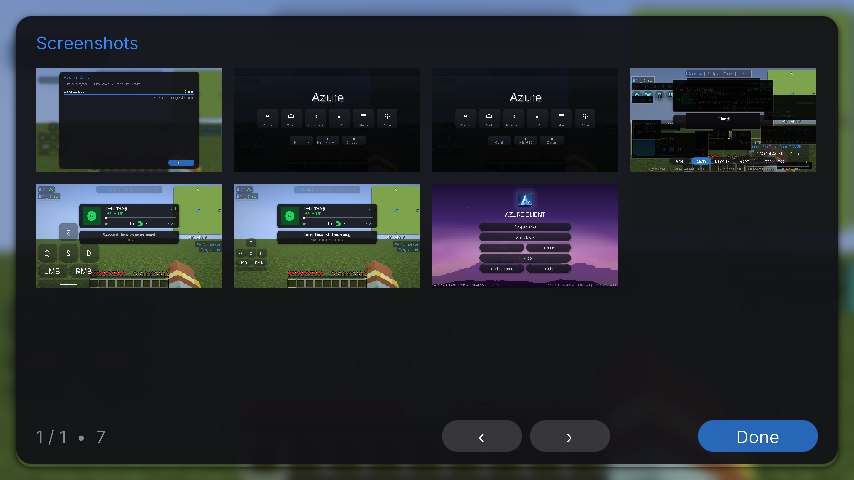
- Screenshot gallery. Browse your screenshots in game, and Frame it saves a framed copy next to the original.
- Clean Screenshots. F2 saves the picture without the Azure HUD, while you still see it on screen.
- Streamer Mode. One switch makes your screen look like plain Minecraft. Coords Hider scrambles coordinates, F3 included.
- Session Stats. Press J for kills, deaths, K/D, hits and best streak, and save it as an image.
- Auto Highlights. A kill, a totem pop or a key press saves the last seconds as a clip by itself, into a Highlights gallery you can rename and tidy.

Performance
Light by default.
Features you leave off don't run. The Performance module draws less of what you can't see, and the installer sets up Sodium, Lithium, FerriteCore, ImmediatelyFast and EntityCulling next to Azure.
Every surface in the menu is drawn the same cheap way, at any size, so the glass look doesn't cost frames.
- Entity Culling / Chest Culling Mobs, players, items and chests behind solid blocks aren't drawn.
- Particle Limit New particles per tick. 600
- Unfocused FPS Frame cap while Minecraft isn't the focused window. 15
- Lag Guard Max Items, XP orbs or item frames drawn per block, for lag machines. 8
- 100 FPS Floor Lifts Minecraft's 60 FPS menu cap and 30 FPS idle cap to 100.
- FPS Booster One click: shorter distances, fewer particles, no clouds. Undo Booster puts it all back. Button